




My 68-year-old mom froze at a restaurant when the menu was a QR sticker on the table. She held her phone at three angles and nothing happened. I scanned it for her. That night I installed a scanner app on her phone and walked her through it in ten minutes. The next weekend she scanned a code at her pharmacy all by herself and called me, proud. That small moment of independence is why I wrote this guide for anyone helping an older parent use QR codes safely.
What Is a QR & Barcode Scanner
It is a small mobile app that uses your phone camera to read those square QR codes and striped barcodes you see everywhere these days, then shows you what is inside them. That might be a website link, a restaurant menu, a Wi-Fi password, or product information. For most younger people, the built-in phone camera handles this fine. But for older adults who may have trouble holding the phone steady, reading small text, or trusting that a link is safe, a dedicated scanner app adds a few things the default camera does not: a simpler interface, a history of past scans, and in some cases, a safety check before opening a link.
How It Works
The first time I handed my mom the phone with the scanner app installed, she asked, "So what button do I press?" The answer was: none. That is the beauty of a well-designed scanner. Here is what actually happens when you use it:
- You tap the app icon. The camera turns on right away. No login screen, no tutorial popup, no menu to dig through.
- You point the camera at the code. Hold it steady for about one to two seconds. A frame appears around the code to show the app has locked onto it.
- The app shows you what it found: a website link, a phone number, or just text. It does not open anything automatically. You get to look first.
- If you want to open the link, you tap it. If it is Wi-Fi information, the phone may offer to connect. If you are not sure, you do nothing and the result just sits there safely.

The scanner shows a live camera view with a highlighted frame around the detected code, then displays the result below for you to tap and open.
Key Features
One-Tap Scanning
The thing I appreciated most was how the app skips every unnecessary screen. You tap the icon and the camera is ready. My mom does not have to navigate menus, pick from options, or remember which tab she is on. One tap and she is scanning. Some scanner apps also let you scan from a photo someone texted you, which came in handy when my sister sent my mom a Wi-Fi QR code through messaging instead of typing out the password.
Scan History
This was a surprise feature that turned out to be more useful than I expected. Every code you scan gets saved in a list inside the app with a timestamp. My mom scanned a menu at lunch, and later that evening she wanted to check if the restaurant had a dessert she had seen. She just opened the history and tapped the saved link. No need to go back to the restaurant or scan the code again. It also gives me peace of mind: if she ever scans something questionable by accident, I can check the history and see exactly what happened.
Built-in Safety Check
This is the feature I cared about most, and honestly, the reason I did not just tell my mom to use her phone's built-in camera. Some scanner apps inspect the web link hidden inside a QR code before opening it. If the link points to a known phishing site or looks suspicious, the app throws up a warning and asks you to confirm before proceeding. My mom cannot always tell a legitimate website from a fake one. I cannot either, sometimes. Having that extra check in place means I worry a little less. It is not perfect, and I will get to its limitations later, but it is a meaningful step up from the default camera app.
Flashlight and Zoom Support
My mom wears reading glasses and struggles in dim lighting. The first time she tried to scan a code at a dark restaurant, the camera could not read it. The built-in flashlight toggle fixed that instantly. There is a small flashlight icon right on the scanning screen. One tap and the flash turns on, the code lights up, and the scan goes through. The zoom feature helps too, especially for small codes on price tags or medication packaging that she cannot get close to comfortably.
Offline Scanning
The app can decode most QR codes even without an internet connection. It reads the pattern using the camera and shows you the raw content, whether that is text, a link, or Wi-Fi credentials. You can then decide whether to open the link once you are back on Wi-Fi. This matters for seniors on limited data plans or anyone passing through areas with spotty coverage. My mom's building has a dead zone in the elevator lobby, and she has scanned codes there without any issue.
No Registration Required
I am very picky about this. A scanner app should work the moment you install it. No account creation, no email signup, no phone number. My mom is wary of entering personal information into apps, and honestly, she should be. If a scanner app demands a login before it will scan a single code, that is a red flag. Delete it and try another one. The app I set up for my mom asked for exactly one permission: camera access. That is all it needed.
Batch and Multi-Format Support
Beyond standard QR codes, a decent scanner also reads barcode formats like UPC, EAN, Code 128, and Data Matrix. My mom uses the same app to scan product barcodes at the grocery store to check prices online, and to scan the ISBN code on the back of books at the library. Having one app that handles everything means her home screen stays simple. She does not need to remember which app does what.
App Screenshots
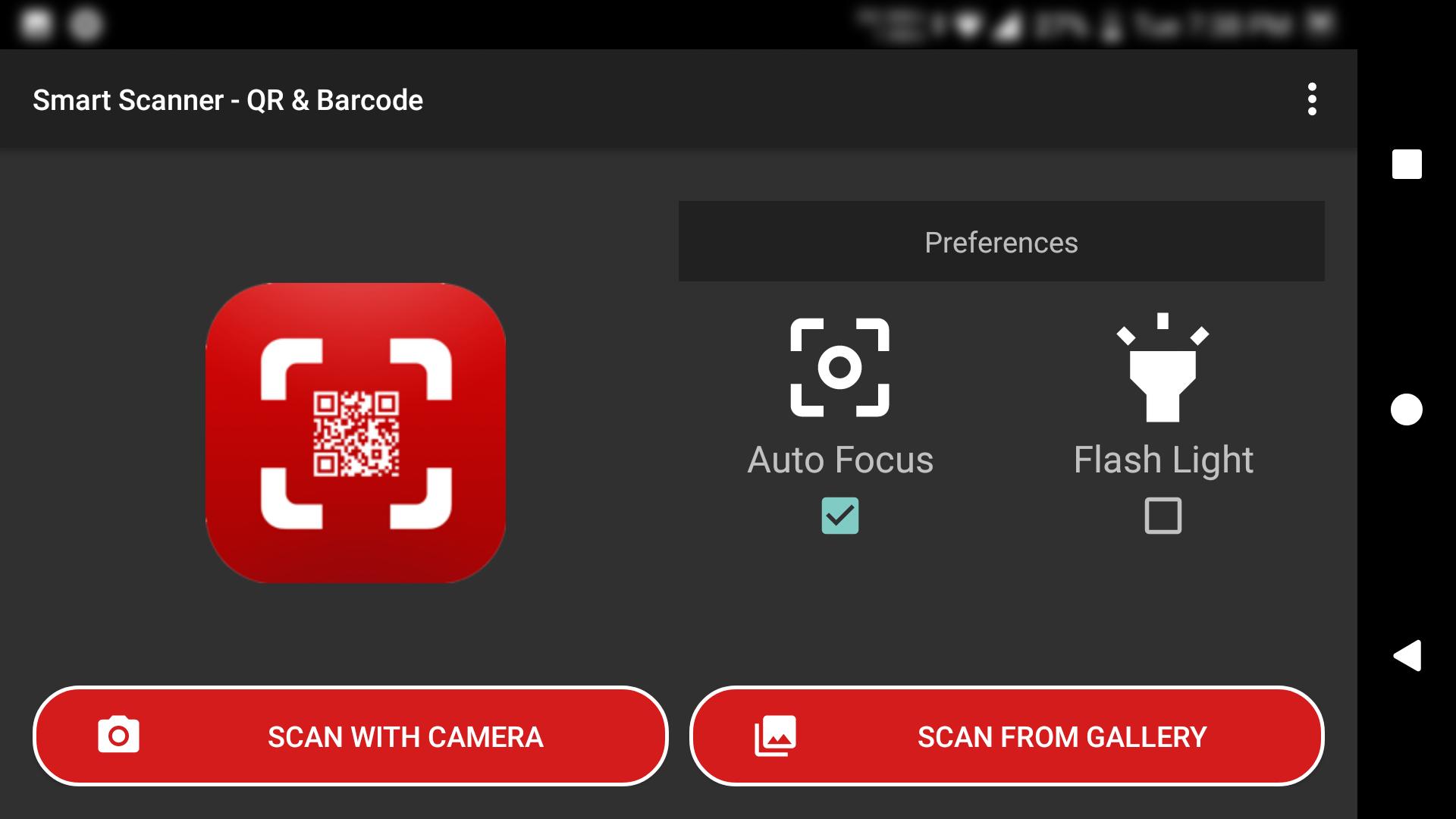
The main scanning screen shows a clean camera view with a large flashlight button at the bottom. No clutter, no ads on the scanning screen itself, just the camera and a toggle.


Step-by-Step Tutorial for Seniors
I set this up for my mom over a single weekend visit. Here is the exact path I took, from installation to her first solo scan. If you are helping an older family member, follow along:
- Install the app from the phone's official app store. Search for "QR scanner" or "barcode reader" and pick one with a high rating and a clean, simple interface. Skip anything that asks for permissions like contacts or messages during installation. A scanner only needs the camera.
- Open the app right after installing. The camera should activate immediately. If it asks for camera permission, tap Allow. That should be the only permission prompt. If it asks for anything else, deny it.
- Practice with a code you trust. I grabbed a cereal box from the kitchen and had my mom scan the QR code on the back. She held the phone about six inches away, and the app picked it up in about a second. Seeing it work on something familiar built her confidence before she tried it in public.
- Show them what the result looks like. Walk through what happens after the scan: the app shows a preview of the link or text, and nothing opens until you tap it. Make sure they understand they are in control. This was the single most reassuring thing for my mom, knowing the app would not automatically open a website she did not want to visit.
- Check the scan history together. After a few practice scans, open the history tab and show them the list of past results. Explain that they can come back here anytime to revisit something they scanned earlier. My mom now checks her history almost reflexively.
- Practice with the flashlight. Turn off the lights in a room or go to a dim corner and have them scan a code with and without the flashlight toggle. This builds muscle memory so they are not fumbling in a dark restaurant when it matters.
- Turn on the safety check if the app has one. Dig into the settings and look for "link safety check" or "phishing protection" or something similar. Turn it on. This is the one setting I consider non-negotiable for elderly users. It adds a warning before opening links the app considers suspicious.
- Talk about fake codes. This is not an app setting, but it is the most important conversation I had with my mom. I showed her how scammers sometimes stick a fake QR code sticker over a real one at restaurants, bus stops, and parking meters. I told her: if a code looks like a sticker slapped on top of something, or if it is printed on a random piece of paper taped to a wall, do not scan it. Ask someone for help instead. That five-minute conversation did more for her safety than any app feature ever could.
Use Cases
- Restaurant menus: the scenario that started this whole journey for me. My mom now scans the table code herself and browses the menu on her own phone without asking the waiter or waiting for me.
- Pharmacy and medication: she scans the barcode on her medicine boxes to look up product details and verify she got the right prescription. This gives her, and me, a lot of peace of mind.
- Public transit: at the bus stop near her apartment, there is a QR code that shows the real-time arrival schedule. She scans it instead of squinting at the tiny printed timetable.
- Grocery shopping: she scans product barcodes in the store to check prices and read reviews. She discovered her favorite brand of oatmeal was cheaper online and now asks me to order it for her.
- Wi-Fi sharing: when she visits my house, she scans a QR code I generated for my Wi-Fi network. No more typing a long password with special characters on a small keyboard, which used to take her several frustrating attempts.
- Bill payments: her utility company started including QR codes on paper bills. Scanning the code takes her directly to the payment page. She still asks me to double-check before she pays, but the convenience is real.
Tips & Tricks
- Hold the phone about 6 to 8 inches from the code. Too close and the camera cannot focus. Too far and the code is too small to read. My mom initially held the phone two inches from the code and wondered why nothing happened. A little distance goes a long way.
- Clean the camera lens. This sounds obvious, but it is the number one reason scans fail. My mom keeps her phone in her purse, and the lens gets smudged. A quick wipe with a soft cloth before scanning fixes most "the app is not working" moments.
- Watch for tampered codes in public. If you see a sticker placed over a printed QR code at a restaurant, bus stop, or parking meter, do not scan it. Scammers cover legitimate codes with fake ones that lead to phishing sites. This is the most common QR scam right now, and seniors are prime targets.
- Read the link before you tap. If the web address looks like a jumble of random letters and numbers, or the domain name does not match the restaurant or store you are at, cancel and ask a family member to check it.
- Never scan codes from unsolicited text messages or emails. If you get a text saying "you owe money" or "you won a prize" with a QR code, delete it. That is a scam, full stop. I had this conversation with my mom twice before it stuck.
- Use the flashlight in dim settings. Restaurants, movie theaters, and waiting rooms are often too dark for the camera to read a code cleanly. One tap on the flashlight icon solves this.
- Review scan history every few days. I ask my mom to show me her scan history when I visit. If there is something there she does not remember scanning, we look into it together. It takes thirty seconds and catches problems early.
- Keep only one scanner app on the phone. My mom had three different scanner apps at one point because she kept downloading new ones. Having multiple apps creates confusion about which icon to tap. Pick one good app, delete the rest, and keep the home screen simple.
- Have a family member check the app permissions periodically. I check my mom's phone every couple of months to make sure the scanner only has camera access. If an app update quietly added new permissions, I revoke them in the phone settings.
Pros & Cons
Pros
- Genuinely simple to use. My mom, who still calls me to ask how to copy and paste text, can operate this app without help. Open, point, read. That is the entire learning curve.
- Scan history is a lifesaver for anyone with memory gaps. Being able to revisit a scanned menu or pharmacy link without going back to the physical location is a real quality-of-life improvement.
- The built-in safety check adds a meaningful layer of protection for seniors who cannot always spot a phishing link on their own. It is not perfect, but it catches the obvious ones.
- Flashlight and zoom support solve real accessibility problems. My mom would not be able to use the app in half her daily scenarios without the flashlight toggle.
- Works offline for decoding, so a dead Wi-Fi connection does not block the scan itself. You can read the code and decide whether to open the link later.
- No registration or account needed. The app works immediately after install, which removes a significant barrier for seniors who are wary of signing up for things.
Cons
- Not all scanner apps include safety checks. The free versions of some popular scanners skip this feature entirely, and the ads in those apps can be so aggressive that they trick seniors into tapping them instead of the scan result. I had to try three apps before finding one that was clean enough for my mom.
- Ad-heavy free versions are a genuine hazard for elderly users. Pop-up ads designed to look like system notifications or "continue" buttons can lead to accidental installs or purchases. If the app shows full-screen ads after every scan, find a different one.
- Some apps request excessive permissions. I have seen scanner apps ask for location, contacts, and file access, none of which are needed to read a QR code. Be vigilant about this during setup.
- The safety check is not foolproof. New phishing sites appear daily, and no app's database is updated in real time. A "safe" result means the link is not in the app's known-bad list, not that it is guaranteed legitimate. My mom still asks me to check anything that looks unfamiliar.
- Older or budget phones with weak cameras may struggle with small, faded, or glossy codes. My mom's previous phone had a scratched lens that made scanning a frustrating experience until she got a screen protector replaced.
- Scan history can contain sensitive information like Wi-Fi passwords or payment links. If someone else handles the phone, that data is accessible. Consider clearing the history periodically if the phone changes hands often.
Alternatives / Comparison
| App | Core difference | Best for |
|---|---|---|
| Built-in Camera App | No install needed, but no scan history, no safety check, no flashlight toggle on the scan screen | Seniors who scan very rarely and want zero extra apps on their phone |
| Google Lens | Powerful image recognition beyond QR codes, but the interface is more complex and overwhelming for new users | Tech-comfortable users who also want object and text recognition, not ideal for seniors who want simplicity |
| Kaspersky QR Scanner | Strong security focus with automatic link inspection, but the app is heavier and may feel cluttered compared to simpler alternatives | Seniors whose family members prioritize maximum scam protection above simplicity |
| QR & Barcode Scanner | Simple interface, scan history, flashlight toggle, and basic safety check, all in one lightweight app with no registration | Seniors who want a straightforward, reliable scanner with just enough safety features and minimal clutter |
FAQs
Is a QR scanner app safe for elderly users?
Yes, if you pick the right one. Install from the official app store, grant only camera permission, and choose an app with a built-in link safety check. The app itself is safe. The real risk is scanning malicious QR codes placed by scammers in public, which is why the safety habits in this guide matter just as much as the app.
Do I need the internet to scan a QR code?
No. The app reads the code using your camera and can display the content offline. However, if the code contains a web link, you will need an internet connection to actually open that link in your browser. My mom scans codes in the elevator lobby of her building where there is no signal, and the app still reads them fine.
Can someone steal my information through a QR code?
The QR code itself cannot steal anything. The danger is what happens after you scan it. If you scan a fake code and then tap the link, you might land on a phishing website that asks for passwords or payment details. Always read the link before tapping, and never enter personal information on a page you reached through an unfamiliar code.
What is the difference between the built-in camera scanner and a dedicated scanner app?
The built-in camera can read QR codes, but it usually does not save a scan history, offer a link safety check, or provide a flashlight toggle on the scanning screen. A dedicated app adds these features, which are especially useful for seniors who want extra convenience and protection. For my mom, the scan history alone was worth the install.
Why does the scanner app ask for camera permission?
The app needs camera access to see and decode the QR code. This is the only permission it should require. If it asks for contacts, messages, location, or files, that is a red flag. Deny those permissions or choose a different app. I check my mom's app permissions every couple of months to make sure nothing has changed after an update.
What should I do if I scanned a suspicious QR code by accident?
If you scanned it but did not tap the link or enter any information, you are almost certainly fine. Close the app, delete the scan from your history if possible, and be more careful next time. If you did tap the link and entered personal details, contact your bank or a trusted family member right away. Do not wait.
Can I use one scanner app for both QR codes and regular barcodes?
Yes. Most modern scanner apps support both QR codes and common barcode formats like UPC and EAN. My mom uses the same app to scan restaurant menus and product barcodes at the grocery store. One app, one icon, one thing to remember.
Conclusion
Setting up a QR scanner app for my mom took about ten minutes of actual work and one short conversation about fake codes. That small effort gave her back a bit of independence she had been quietly losing as restaurants, pharmacies, and bus stops replaced printed information with QR codes. She no longer waits for me to scan things for her, and she no longer feels that flicker of embarrassment when a waiter points to a sticker on the table. If you have a parent or grandparent in the same situation, I cannot recommend doing this enough. Pick a simple app with scan history and a safety check, spend a weekend afternoon setting it up, and have the conversation about fake codes. The technology is the easy part. The human part, the patience and the conversation, is what actually makes it stick.
Safety Note and Disclaimer
Our website is a third-party distribution and information site, not the official app store or the app developer.
Download only from a source you trust and verify the source.
Review the permissions the app requests and decline anything that looks excessive.
Keep your device's security settings and antivirus up to date.
Prefer official stores (Google Play) when the app is available there.
This article is an independent overview and is not affiliated with the app's developer.