


Introduction: What You Will Achieve
This guide will walk you through the essential steps to get started with Chispa, a dating app designed to help you connect with like-minded individuals. By the end of this guide, you’ll have successfully created an account, set up your profile, and started exploring potential matches.
Prerequisites & Setup
Before diving in, ensure you meet the following requirements:
- A compatible smartphone (iOS or Android).
- A stable internet connection.
- A valid email address or Facebook account for registration.
- Permission to access your device’s camera and photo library (for profile setup).
Core Step-by-Step Guide
Step 1: Downloading and Installing the App
Open your device’s app store (Google Play Store or Apple App Store). Search for “Chispa” and tap the “Install” or “Get” button to download the app.
Step 2: Creating Your Account
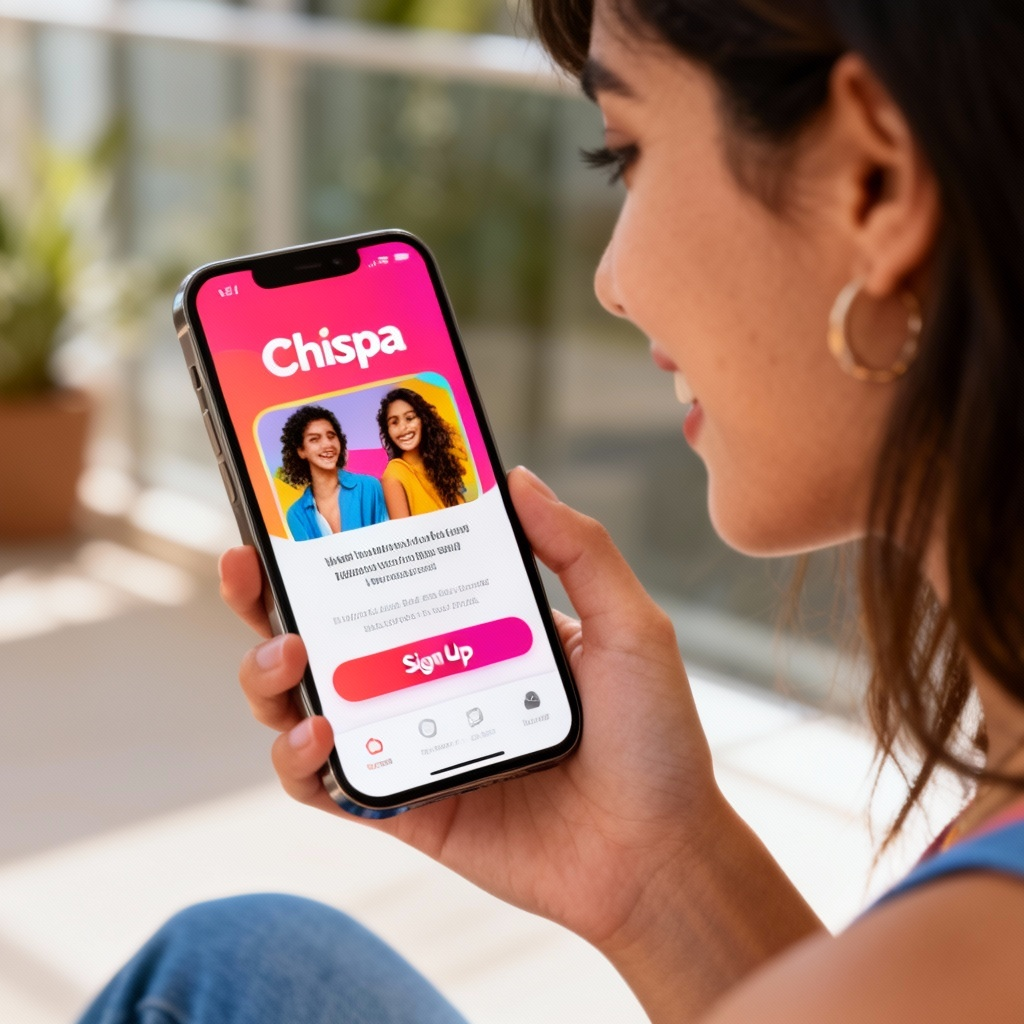
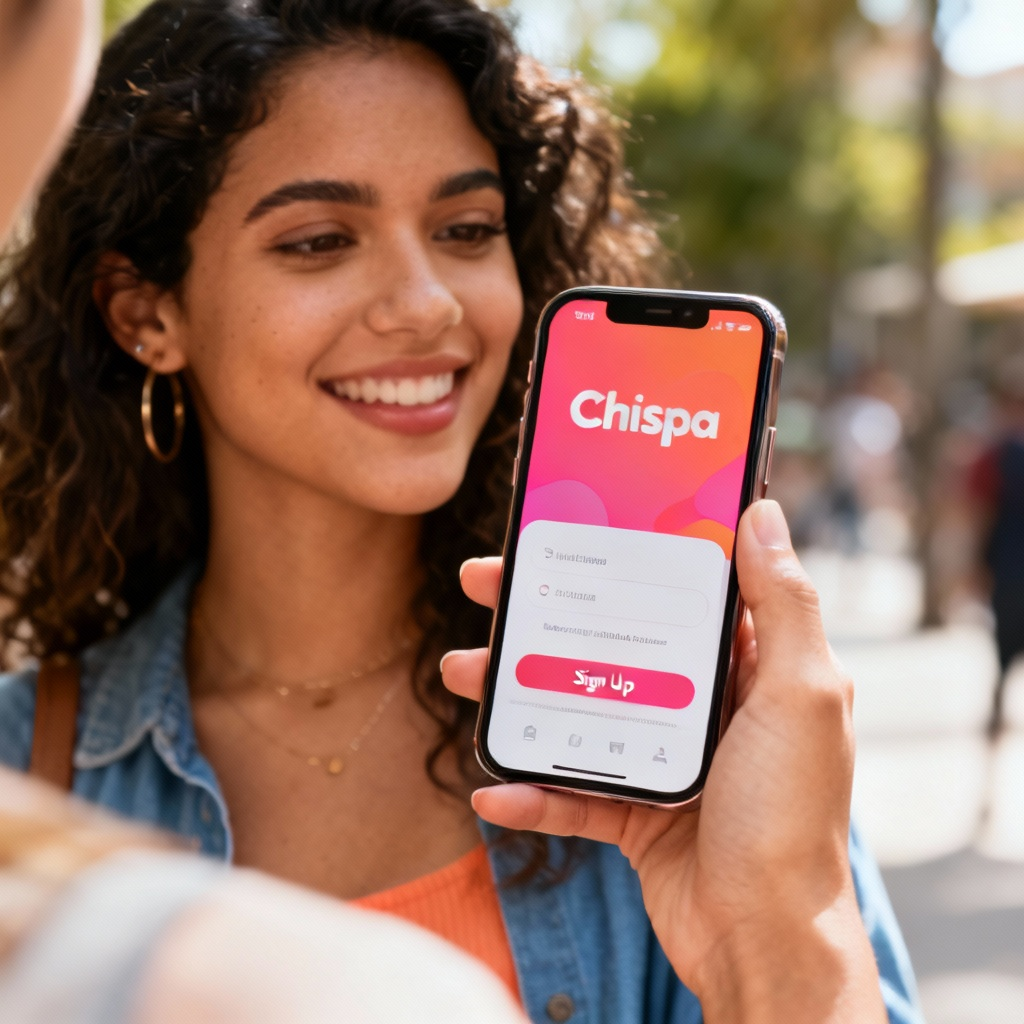
Open the Chispa app. Tap “Sign Up” and choose to register with your email address or Facebook account. Follow the prompts to enter your details and create a password.
Step 3: Setting Up Your Profile
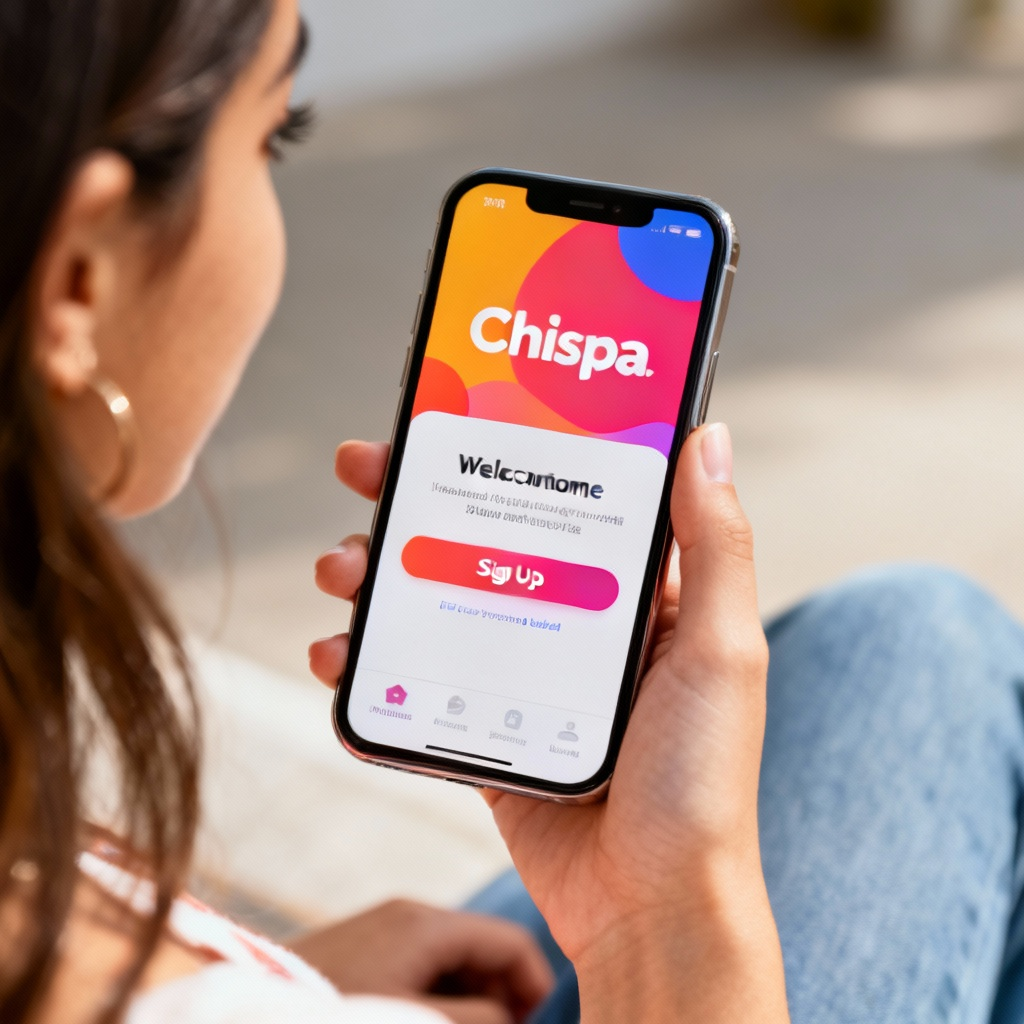
After registration, tap “Edit Profile.” Upload a clear profile photo by selecting “Add Photo” and choosing an image from your gallery. Fill in your bio, interests, and preferences to make your profile stand out.
Step 4: Exploring Matches
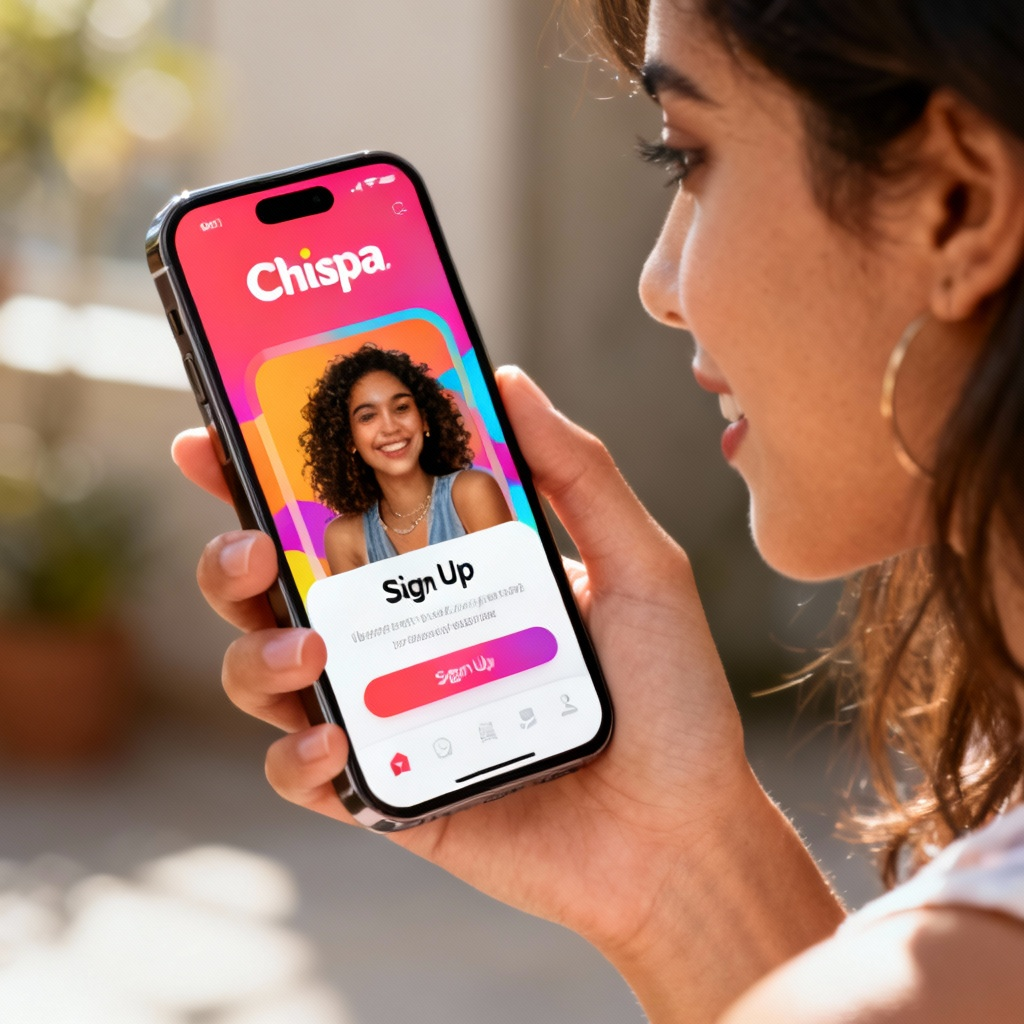
Tap the “Discover” tab to browse potential matches. Swipe right to like a profile or swipe left to pass. If both users swipe right, it’s a match!
Step 5: Starting a Conversation
Once you’ve matched with someone, tap the “Chat” button on their profile. Send a friendly message to begin the conversation.
Common Mistakes to Avoid
- Skipping profile setup: An incomplete profile may reduce your chances of matching.
- Using low-quality photos: Blurry or inappropriate images can deter potential matches.
- Overlooking preferences: Setting your preferences ensures you see profiles that align with your interests.
FAQ
Q: How do I change my profile photo?
Q: Can I use Chispa without a Facebook account?
Q: How do I delete my account?
Final Checklist & Key Takeaways
- Download and install the Chispa app.
- Create an account using your email or Facebook.
- Set up your profile with a photo and bio.
- Start swiping to find matches.
- Initiate conversations with your matches.
You’re now ready to enjoy your Chispa experience! Happy matching!
For more details, visit Chispa’s official guide to explore advanced tips and features.